
Loading history…
Explore Image Workflows
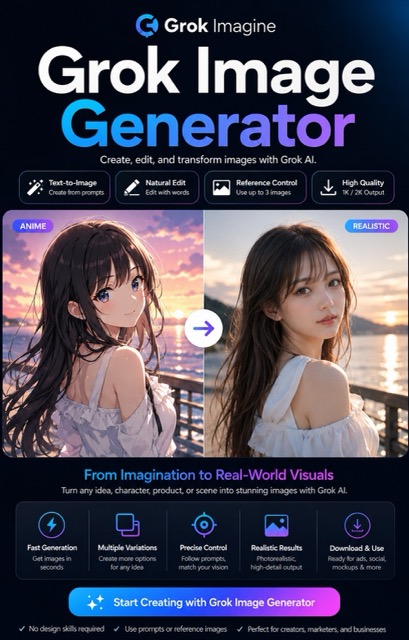
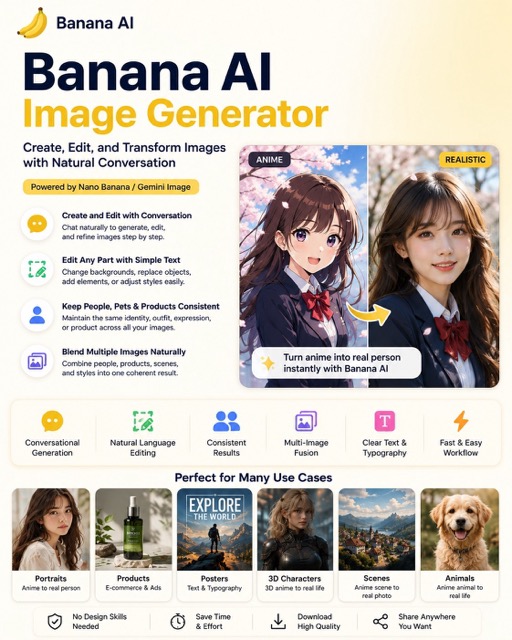
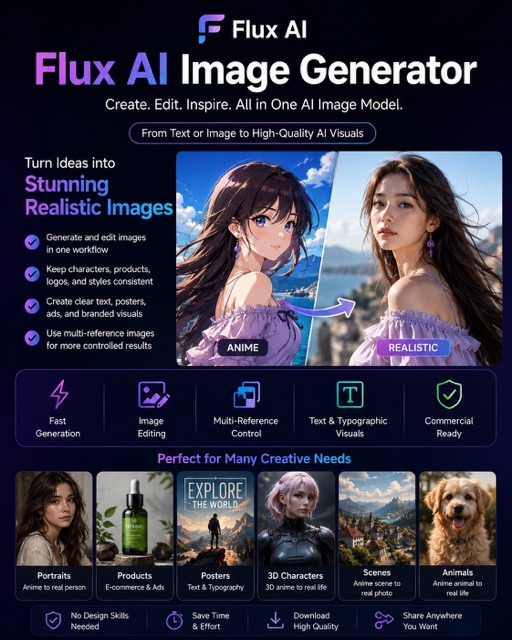
Explore the Grok Imagine workflow and compare it with the related image pages. The generator is the source of truth for current model access and settings. Use the prompt library to study published results and the model that created them.
Create Images from Your Ideas
Write your Grok Imagine image brief around a subject, composition, lighting and intended style. Add a material or texture when it matters. For edits, state one precise change and explain which parts of the source should remain intact.
Write your Grok Imagine image brief around a subject, composition, lighting and intended style. Add a material or texture when it matters. For edits, state one precise change and explain which parts of the source should remain intact.
Explore Grok ImagineCreate Your Grok Imagine Image
Choose only the resolution and aspect ratio shown for the selected model. Check framing, fine details and any text in the completed image. A larger output size does not guarantee a more accurate result.
Advanced AI Image Generation & Customization
Choose only the resolution and aspect ratio shown for the selected model. Check framing, fine details and any text in the completed image. A larger output size does not guarantee a more accurate result.
Write Precise Editing and Style Directions
Choose only the resolution and aspect ratio shown for the selected model. Check framing, fine details and any text in the completed image. A larger output size does not guarantee a more accurate result.
Describe the Changes and Details to Preserve
Explore the Grok Imagine workflow and compare it with the related image pages. The generator is the source of truth for current model access and settings. Use the prompt library to study published results and the model that created them.
Describe the Changes and Details to Preserve
Choose only the resolution and aspect ratio shown for the selected model. Check framing, fine details and any text in the completed image. A larger output size does not guarantee a more accurate result.
Review Usage Terms Before Sharing
Check the applicable model and platform terms before using a result commercially. You are responsible for the rights to uploaded images, identifiable people, logos and any other source material in your Grok Imagine image brief.
Keep Your Workflow Simple
Describe the result you need, select an available Grok Imagine model and submit your request from the generator. Review completed image results in your assets, refine the prompt when needed, and download the version that fits your project.
A Clearer Creative Brief for Grok Imagine
Diverse Styles & Effects for Every Vision
Describe the result you need, select an available Grok Imagine model and submit your request from the generator. Review completed image results in your assets, refine the prompt when needed, and download the version that fits your project.
Write your Grok Imagine image brief around a subject, composition, lighting and intended style. Add a material or texture when it matters. For edits, state one precise change and explain which parts of the source should remain intact.
Versatile Grok Imagine AI Image Generator for Every Creator's Vision
Start your Grok Imagine image brief with a source image you have permission to use. Name the area to change and the colors, proportions or objects to preserve. Reference count and editing support depend on the selected model.
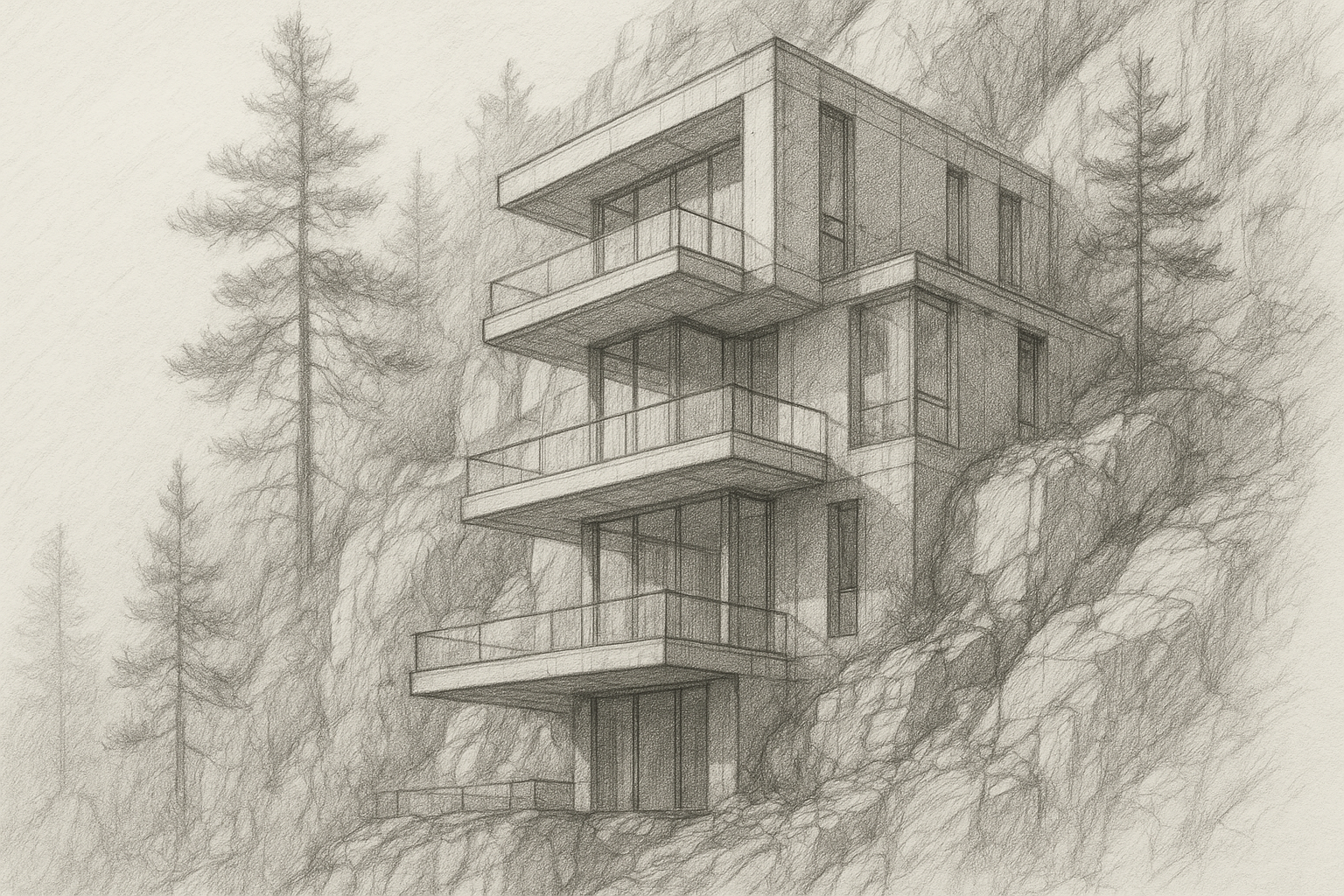
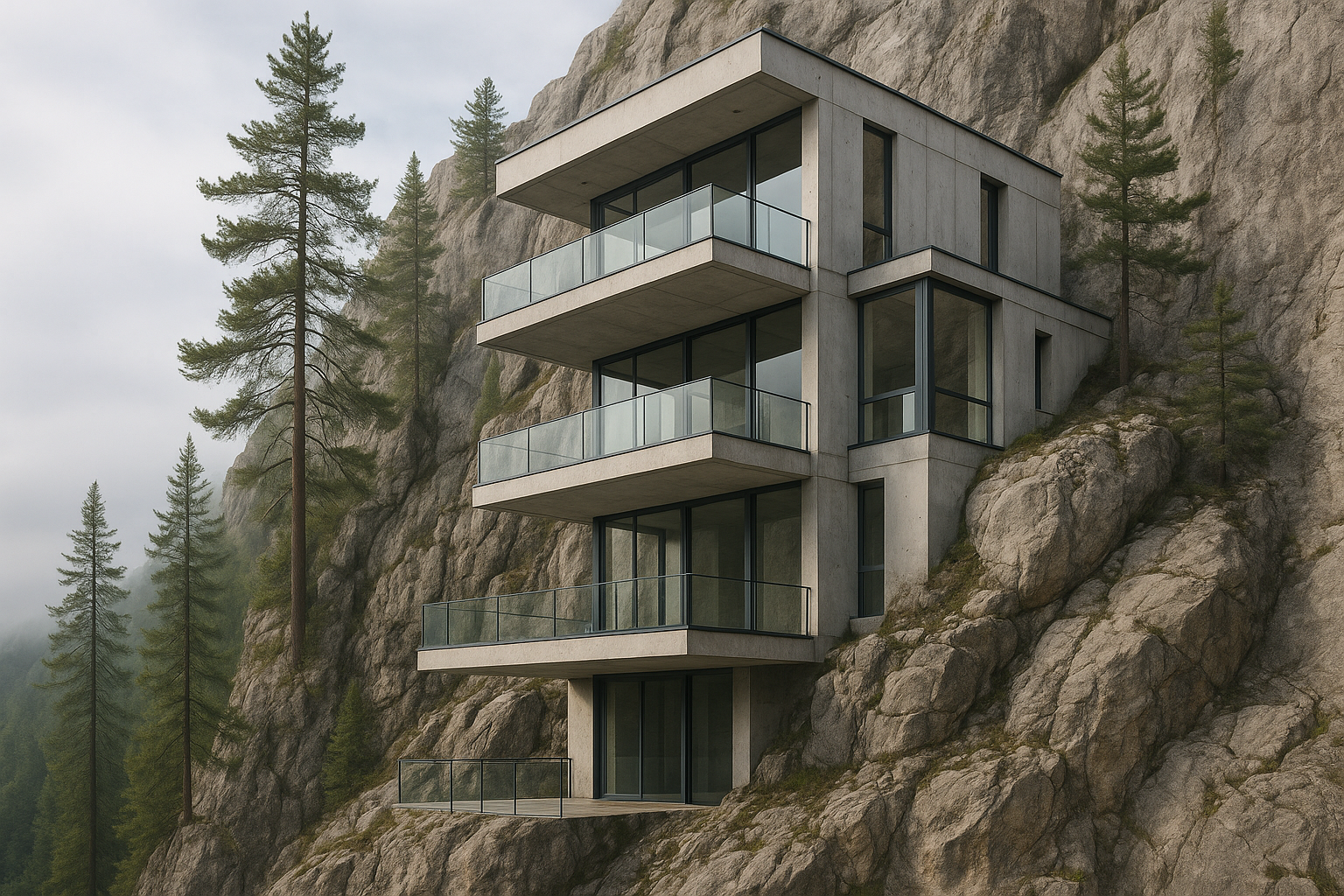
For Architects and Designers
Write your Grok Imagine image brief around a subject, composition, lighting and intended style. Add a material or texture when it matters. For edits, state one precise change and explain which parts of the source should remain intact.
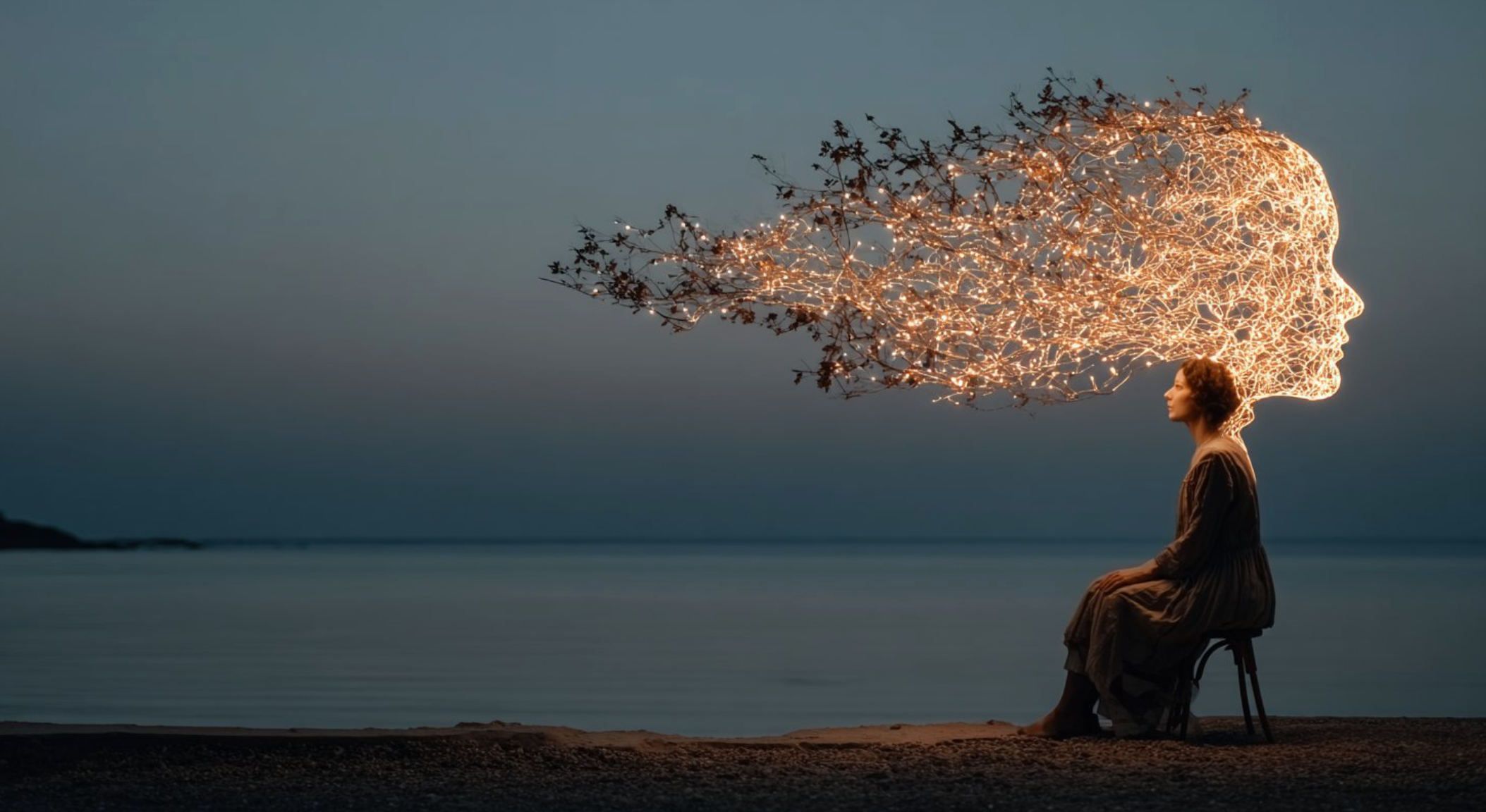
For E-Commerce Professionals
List the details that matter in your Grok Imagine image brief: identity, shape, colors, clothing and background. Use supported references where appropriate and compare every result; exact consistency is not guaranteed.
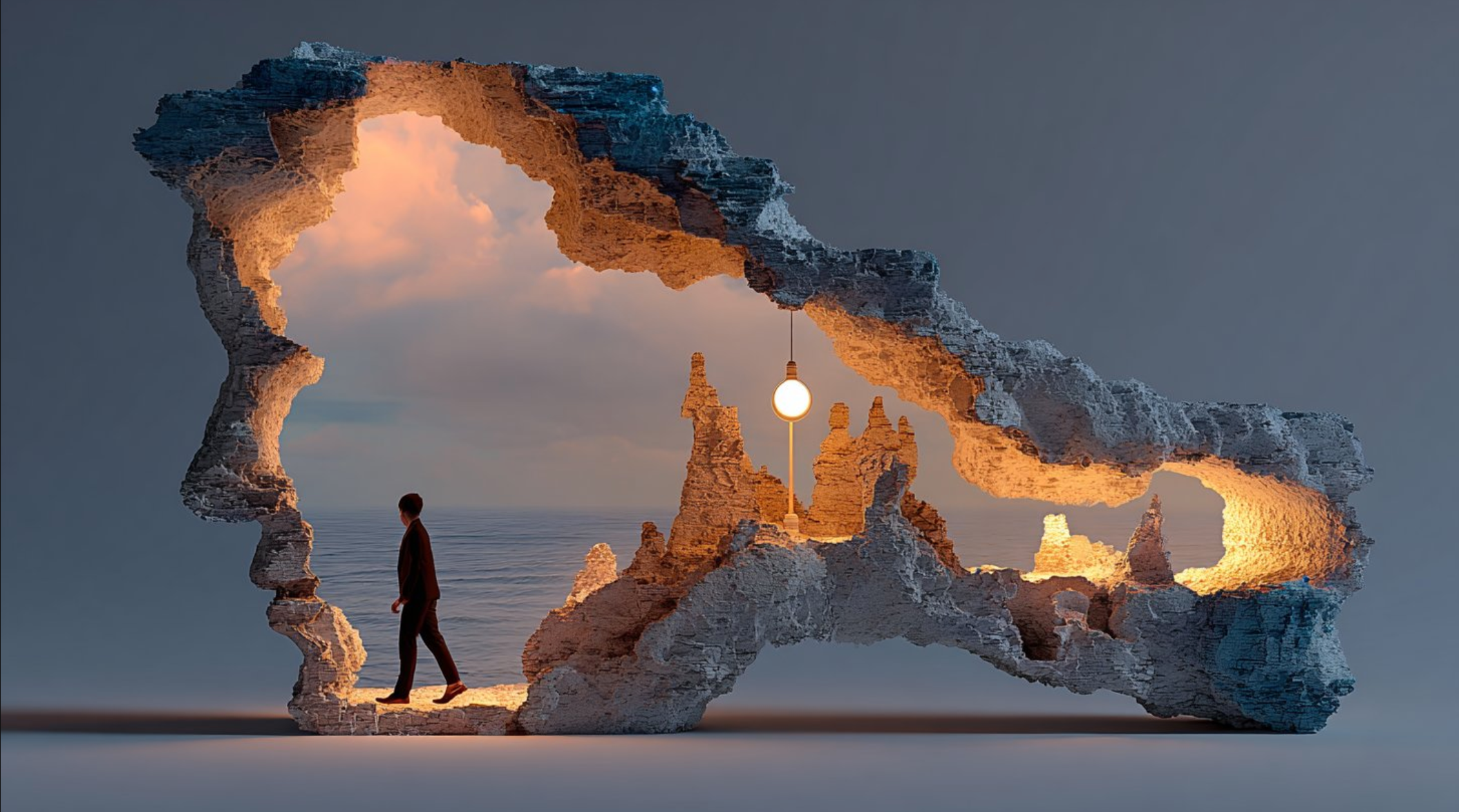
For Content Publishers
Choose only the resolution and aspect ratio shown for the selected model. Check framing, fine details and any text in the completed image. A larger output size does not guarantee a more accurate result.
For Event Planners
Write your Grok Imagine image brief around a subject, composition, lighting and intended style. Add a material or texture when it matters. For edits, state one precise change and explain which parts of the source should remain intact.
From Prompt to Finished Image: The Grok Imagine Workflow
Add Your Input
Start your Grok Imagine image brief with a source image you have permission to use. Name the area to change and the colors, proportions or objects to preserve. Reference count and editing support depend on the selected model.
Customize Your Options
The generator shows current model availability. When a model accepts requests, choose its supported settings and review the required credits before submitting. Review your selection and credit balance before generating.
Generate and Refine
Write your Grok Imagine image brief around a subject, composition, lighting and intended style. Add a material or texture when it matters. For edits, state one precise change and explain which parts of the source should remain intact.
Review and Download Completed Results
Start your Grok Imagine image brief with a source image you have permission to use. Name the area to change and the colors, proportions or objects to preserve. Reference count and editing support depend on the selected model.
Grok Imagine Image Ideas for Your Projects
Choose only the resolution and aspect ratio shown for the selected model. Check framing, fine details and any text in the completed image. A larger output size does not guarantee a more accurate result.
Digital Art & Illustration
Choose only the resolution and aspect ratio shown for the selected model. Check framing, fine details and any text in the completed image. A larger output size does not guarantee a more accurate result.
Marketing & E-Commerce Visuals
For a Grok Imagine product concept, specify the product shape, material, key detail and setting. Keep logos and claims accurate, allow room for your own typography, and review the result before using it in an advertisement.
Educational Content & Presentations
Use a Grok Imagine visual concept to support one teaching or presentation point. Check facts and labels yourself, and add final captions in your editing workflow rather than relying on generated text.
Game Development
List the details that matter in your Grok Imagine image brief: identity, shape, colors, clothing and background. Use supported references where appropriate and compare every result; exact consistency is not guaranteed.
Creative Notes for Your Grok Imagine Image Brief
Give the main subject one clear action. For a Grok Imagine concept, a precise brief is easier to assess than a list of competing effects.
Grok Imagine Image Workflow: Questions & Answers
Heydots brings the Grok Imagine image workflow into one workspace: write your prompt, choose an available model, review the credit cost and generate. Completed results stay in your assets for review and download. The generator shows which models and inputs accept requests.
Write your Grok Imagine image brief around a subject, composition, lighting and intended style. Add a material or texture when it matters. For edits, state one precise change and explain which parts of the source should remain intact.
Heydots brings the Grok Imagine image workflow into one workspace: write your prompt, choose an available model, review the credit cost and generate. Completed results stay in your assets for review and download. The generator shows which models and inputs accept requests.
Use only the input modes and controls offered by the selected model. Describe the intended image clearly and add supported references when useful. This page does not promise separate motion-brush, audio-upload, restoration or editing tools.
Use only the input modes and controls offered by the selected model. Describe the intended image clearly and add supported references when useful. This page does not promise separate motion-brush, audio-upload, restoration or editing tools.
Check the applicable model and platform terms before using a result commercially. You are responsible for the rights to uploaded images, identifiable people, logos and any other source material in your Grok Imagine image brief.
The generator shows current model availability. When a model accepts requests, choose its supported settings and review the required credits before submitting. Review your selection and credit balance before generating.
Describe the result you need, select an available Grok Imagine model and submit your request from the generator. Review completed image results in your assets, refine the prompt when needed, and download the version that fits your project.
Explore Your Next Grok Imagine Image Idea
Explore the Grok Imagine workflow and compare it with the related image pages. The generator is the source of truth for current model access and settings. Use the prompt library to study published results and the model that created them.